
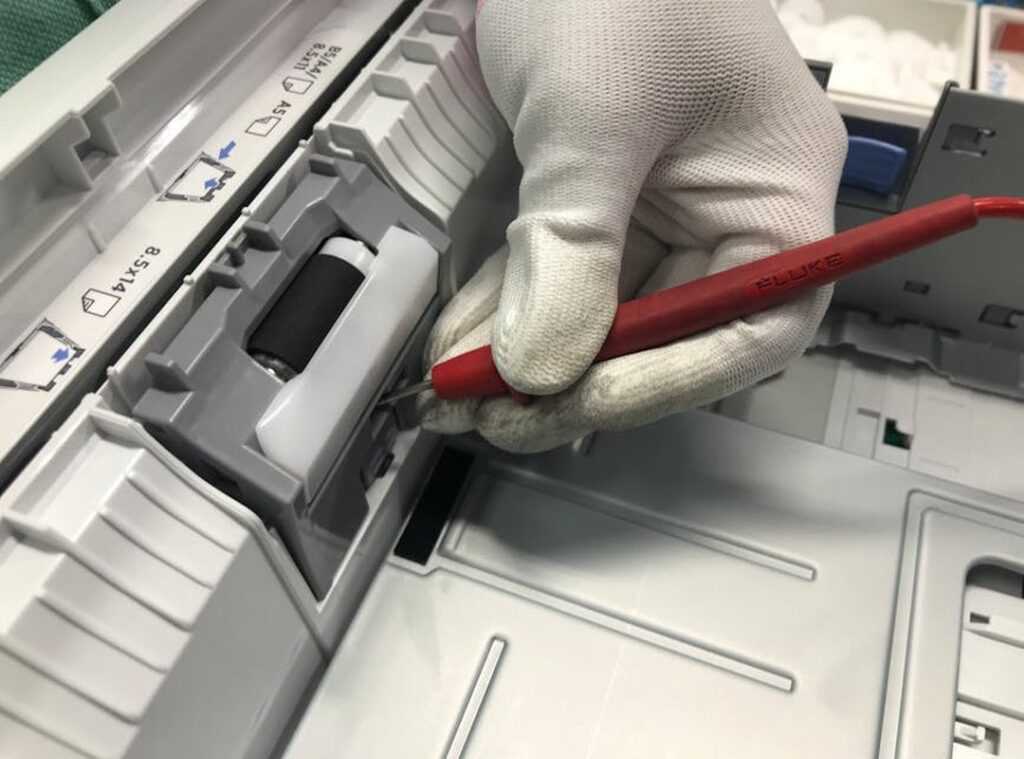
We’ve all been there (standing) in front of a stubborn printer that refuses to cooperate just when you need it most. It’s infuriating, isn’t it? But what if I told you there’s a way to cut through the frustration?
This article is your guide to printer issues troubleshooting. I’ve spent years breaking down tech puzzles, turning what seems like magic into clear, actionable steps.
Through this, I aim to arm you with a systematic approach for resolving printer problems. You’ll start with simple checks and progress to more complex fixes. You won’t just solve one issue; you’ll learn a repeatable process.
Imagine dealing with future printer problems with confidence, saving time and sanity. That’s what you’ll walk away with (a) method to tackle any printer challenge head-on.
The First Five Minutes: Your Don’t-Panic Checklist
Ever find yourself tangled in printer issues troubleshooting? I’m convinced over half of these issues can be solved with a few basic checks. First, power and cables.
Unplug the power cord from both ends. Wait 60 seconds. Then, replug.
Next up, Wi-Fi connection. Is your printer’s network status light on? If it’s not, it’s time to run the wireless setup again.
Same for the USB or Ethernet cable. It’s simple, but you’d be surprised how often this resolves things.
Reconnecting to the right network can be a game-changer.
Finally, paper and ink (or toner). It’s not just about having paper. Make sure it’s aligned correctly.
Fan the stack before loading to avoid jams. Check your ink or toner cartridges. Are they seated properly?
Empty? You’ve got to have the basics right.
If you’re still stuck, you might want to check out this guide on effective virus removal techniques. Sometimes the issue isn’t as straightforward as it seems.
So, what are you waiting for? Go ahead and tackle these steps. Most of the time, they’re all you need to get back to printing bliss.
Decoding the Digital Handshake: Printer Panic Averted
Ever felt like your computer and printer were speaking different languages? You’re not alone. The digital handshake between them can sometimes fail, and things get messy.
But there’s hope! Let’s break down these common stumbling blocks.
Is Your Print Spooler Stuck?
The print spooler is a bit like a bouncer at a club. It manages who gets to print and when. When it clogs up, your print jobs might grind to a halt.
Restarting the spooler is often the fix you need.
For Windows, open the ‘Services’ app (just type it in the search bar and hit enter). Scroll down to ‘Print Spooler’. Right-click it, stop it, and start it again.
Easy, right? For Mac users, open the ‘Terminal’ and type: sudo killall -HUP cupsd. This command restarts the print service.
Don’t worry it sounds more intense than it is.
Pro tip: Clear out any stuck print jobs in the queue first. This restart won’t help if you’ve got a line of jammed-up requests.
The Outdated Driver Dilemma
A driver is your printer’s language software. If yours is outdated, it’s like trying to text an emoji to a flip phone. Find your printer’s model number (usually on the back or bottom of the printer).
Head to the manufacturer’s website for the latest driver downloads.
Avoid third-party websites like the plague. They often host junk that can mess with your system. It’s safer sticking to the official source.
Plus, you want the latest software direct from the horse’s mouth.
Device and Printer Settings
We sometimes overlook the simplest fixes. Is your printer set as the default one? Get through to your computer’s printer settings and check.
If it’s not set right, your documents might get lost in the digital abyss.
Remove and re-add the printer. This forces your system to refresh the connection. Think of it as a relationship reset.
Sometimes, all it needs is a fresh start.
For more detailed help on these issues, check out print quality troubleshooting. It can be a lifesaver when you’re knee-deep in printer issues troubleshooting.
And there you have it. Your step-by-step guide to avoid headaches when dealing with printer problems. Now, next time your printout’s on the fritz, you’ve got the tools to sort it out.
Ready to dive back into the world of frustration-free printing?
When the Machine Fails: Fixing Printer Hardware
Let’s face it. Printers can be frustrating. One minute they’re your best friend, churning out documents like a dream.
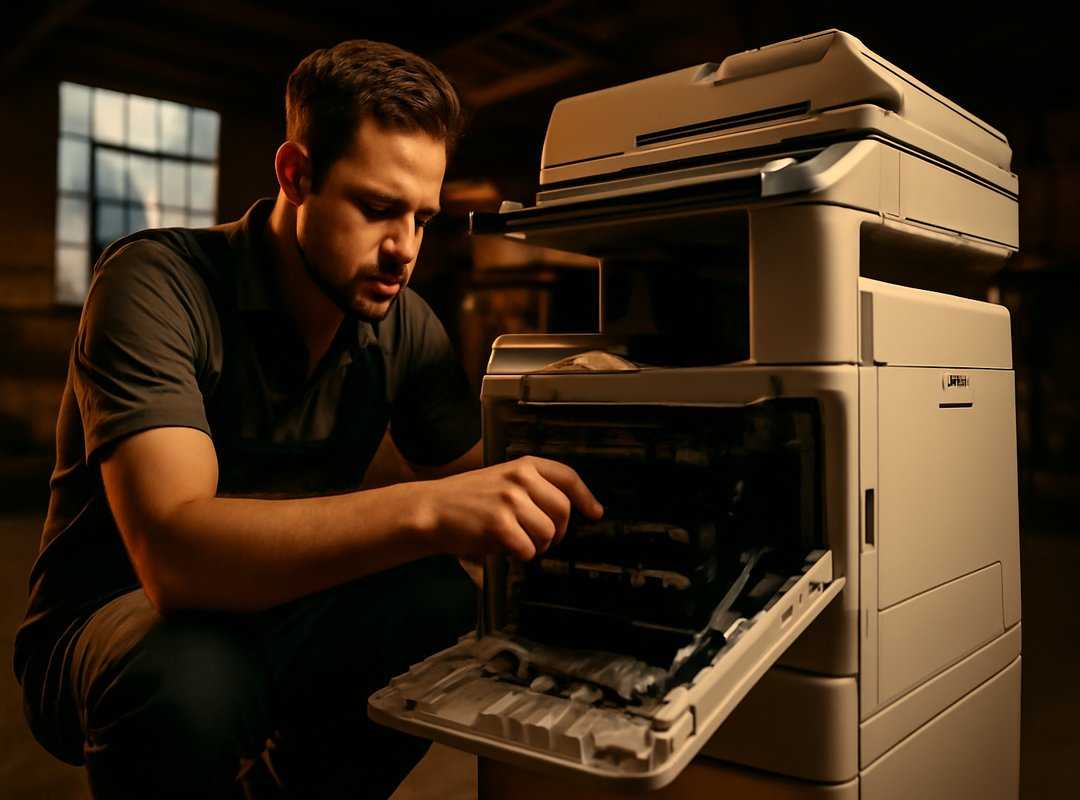
The next, they’re giving you a flashing light show and a headache. Ever wonder if there’s something you can do beyond cursing and shaking your fist? to some straightforward printer issues troubleshooting.
First up, those pesky paper jams. You know the drill, right? Your printer makes some alarming noises, then stops dead.
To handle this, always turn off your printer first (seriously, don’t skip this). Open all the access doors carefully. Pull the paper gently in the direction it wants to go.
No yanking! A torn piece is a nightmare. Sometimes it helps to use a flashlight.
You’ll be surprised how paper scraps hide in the shadows.
Then there are the error codes and blinking lights. Printers love to communicate through these cryptic signals. They’re not just for show.
Write down the code or pattern you see. Trust me, this isn’t random. Head to the manufacturer’s support site and search for it.
It’s a far better move than following generic advice. Plus, it saves you from more headaches.
Now, let’s talk about print quality issues like streaks, fading, and smudges. It’s not just the ink or paper to blame here. Printers come with built-in software for maintenance cycles.
Ever heard of ‘Print Head Cleaning’ or ‘Nozzle Check’? These are your go-to tools. Run them when you notice quality dropping.
But be warned, they consume ink (printers don’t do anything for free). Balance is key.
And if you’re scratching your head over a bigger hardware issue, consider diagnosing fixing hardware failures. It’s a great resource for tackling some of those deeper problems. It’s all about understanding your machine.
Instead of throwing it out the window, figure out what’s wrong.
The goal is to keep your printer from becoming a paperweight. You might not turn into a tech wizard overnight but knowing how to tackle these common issues can save you time and sanity. So next time your printer throws a fit, you’ll be ready.
Just remember: patience, a calm approach, and these tips can go a long way.
Beyond the Fix: Smarter Printing Habits
Printer issues troubleshooting can be maddening. We’ve all been there, right? You’re in a rush, and the printer decides to throw a tantrum.
Instead of playing whack-a-mole with problems, why not get proactive? Using the manufacturer’s app (like HP Smart or Epson Connect) isn’t just smart (it’s) important. You can monitor ink levels, order supplies, and even use AI for diagnostics.
Sounds futuristic. But it’s real.
Run a nozzle check monthly on your inkjet. It’ll save you from clogs. Wipe those rollers every few months with a lint-free cloth.
It’s simple but effective. And keep an eye on emerging trends like self-diagnosing printers. They’ll order toner before you even know you need it.
Imagine that. A device that thinks ahead. Welcome to the future.
Grab Control Over Your Printing Chaos
Printer problems can ruin your day. I get it. But tackling these with a structured approach (Physical, Software, then Hardware) lets you breathe easier.
This isn’t just about today’s mess; it’s about future-proofing your tech life. You deserve freedom from tech headaches.
When you master printer issues troubleshooting, you’re in charge. Want more control over your tech? Dive into our guides.
We’re here to help you conquer those tech frustrations. Ready to take the plunge? Visit our site for more takeaways and become the tech-savvy person you’ve always wanted to be.